A journal app for iPad
that takes handwriting
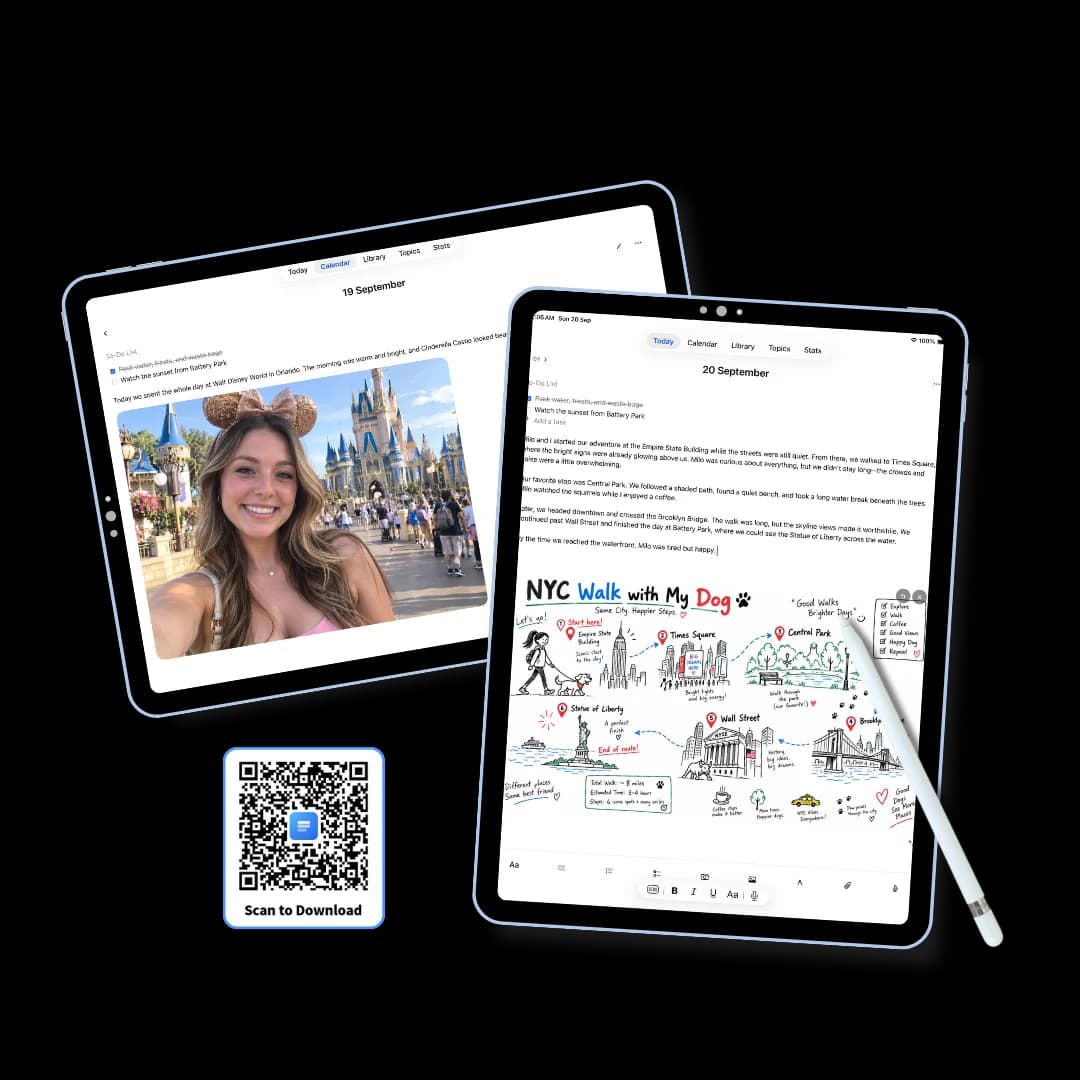
Three Pages Daily is a minimal private journal app for iPad — three pages a day that take typing and Apple Pencil handwriting on the same sheet.
There are no notebooks to build and no templates to pick; the date organises everything, and a page holds text, handwriting, photos, voice notes and files in any mixture. The Pencil draws while your finger still scrolls, so nothing needs toggling. Everything is stored on the iPad and can be locked behind Face ID.
Typing and handwriting in the same entry
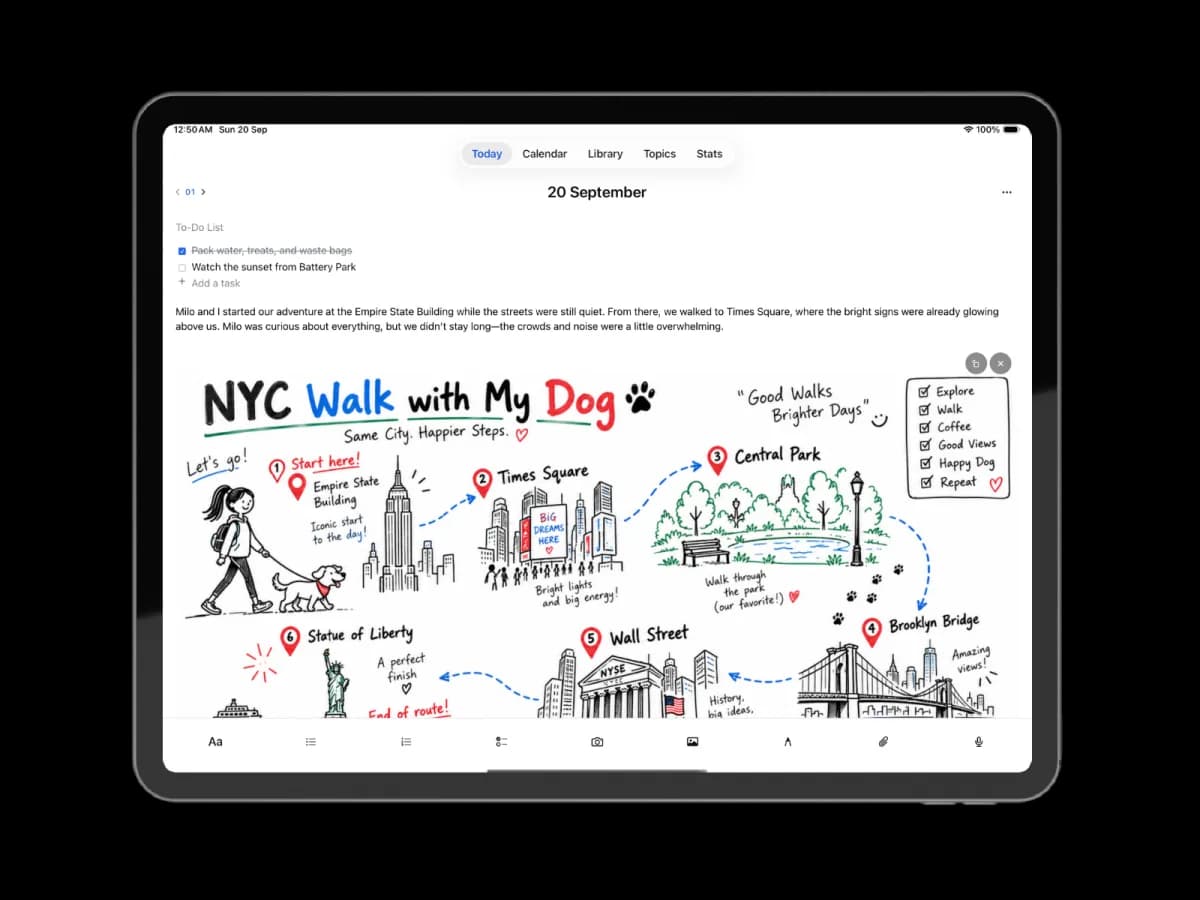
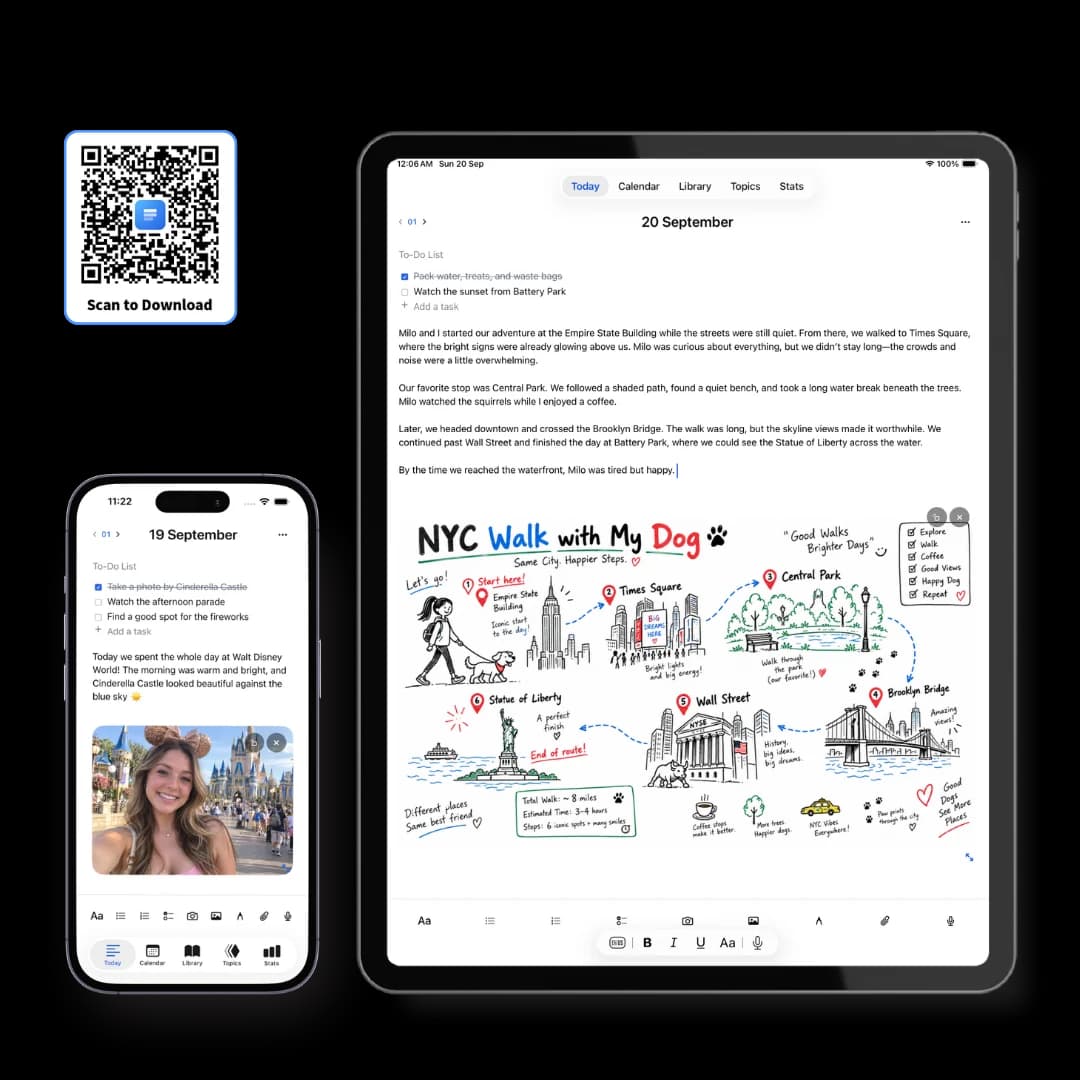
This is the thing an iPad does that no phone and no laptop can. Write the account of the day with a keyboard, then drop a canvas into it and draw — a route, a diagram, a margin note — without leaving the page or opening a second app.
A canvas anywhere in the page
Between two paragraphs, at the top, or filling the space under a long entry.
Pencil draws, finger scrolls
Both work at once, so there is no mode button to press before you can move the page.
Pen, highlighter, eraser, lasso
Enough to sketch and rearrange without opening a full illustration app.
Room to write at length
The screen holds several paragraphs and a full-width drawing without scrolling.
Say the bit you'd never type out
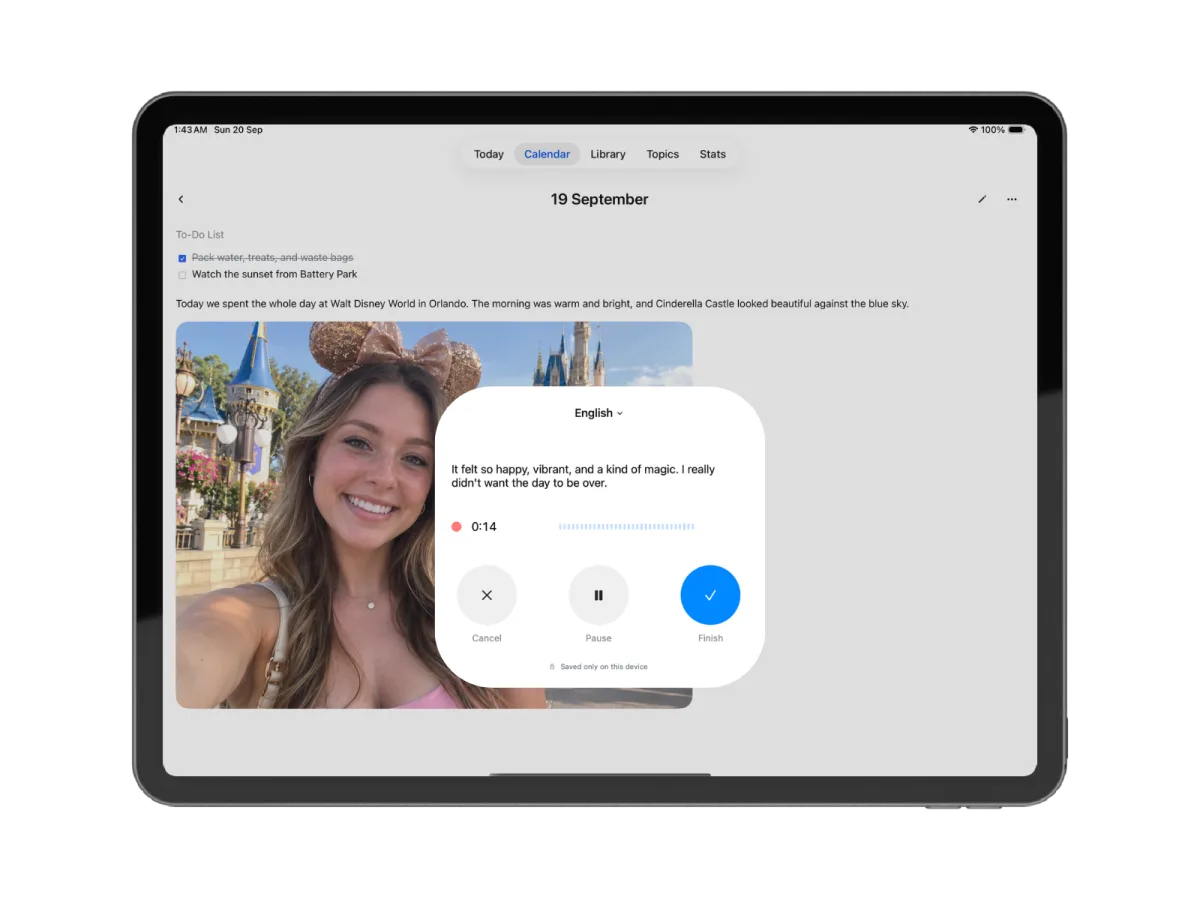
Some entries are three paragraphs you don't want to write by hand or by keyboard. Recording opens over the page with a live transcript running, so you get the audio and searchable text without leaving the day you're writing.
Transcribed as you speak
The text appears while you talk, and stays editable afterwards.
Pick the language
A language picker sits at the top of the recorder, so it isn't locked to one.
Audio stays with the page
The recording lives in the day's entry, not in a separate voice memo list.
Handled on the device
The panel says it plainly while recording: saved only on this device.
A whole day on screen at once
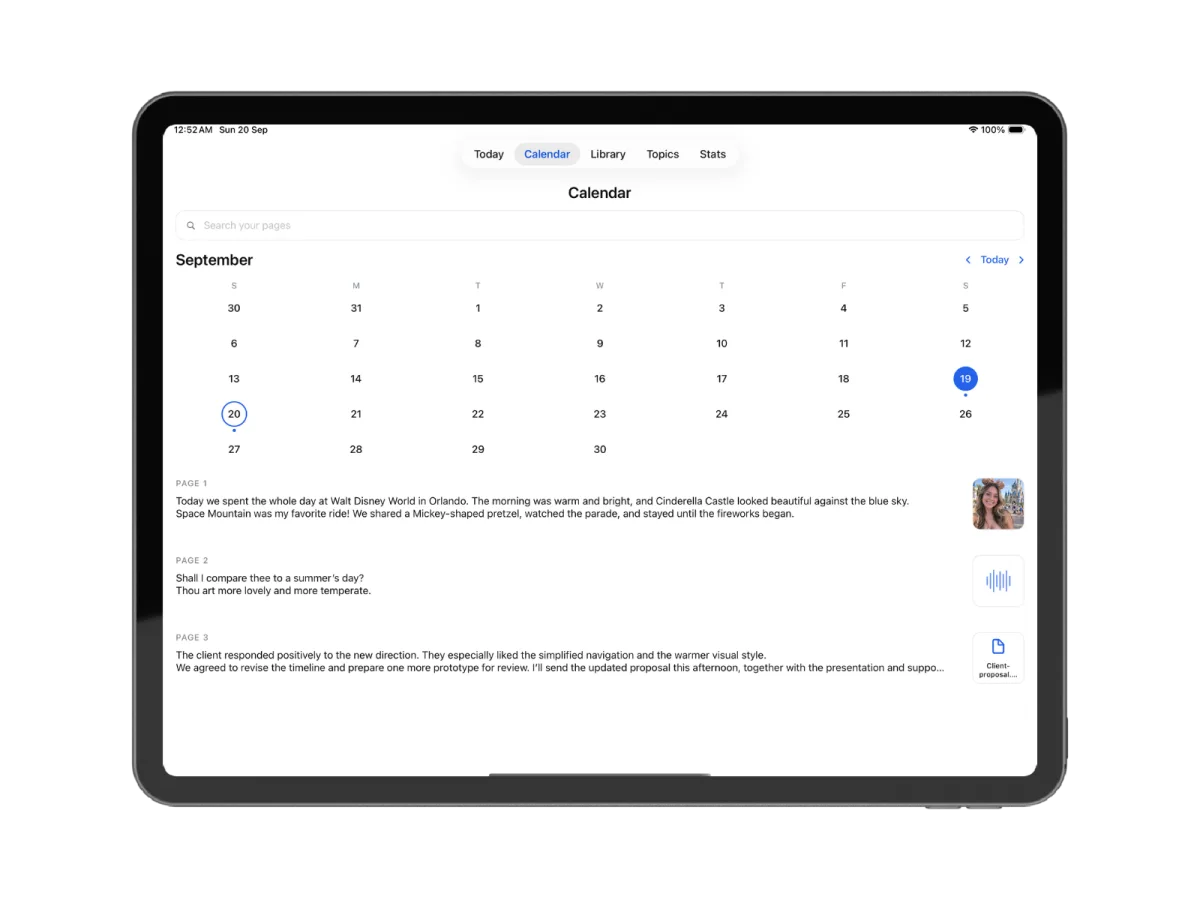
This is what the extra screen buys you. Where a phone shows one page preview at a time, the iPad lists the day's pages under the month — so you can scan three entries, a voice note and an attachment without opening any of them.
Three pages at a glance
The day's pages listed under the calendar, with the media each one holds.
Search your pages
Entries, voice transcripts, words inside photos, and inside some attachments.
Dots mark the days you wrote
A month's worth of consistency readable in one look, without a streak counter.
Jump back to Today
One control returns you to the current date from wherever you've wandered.
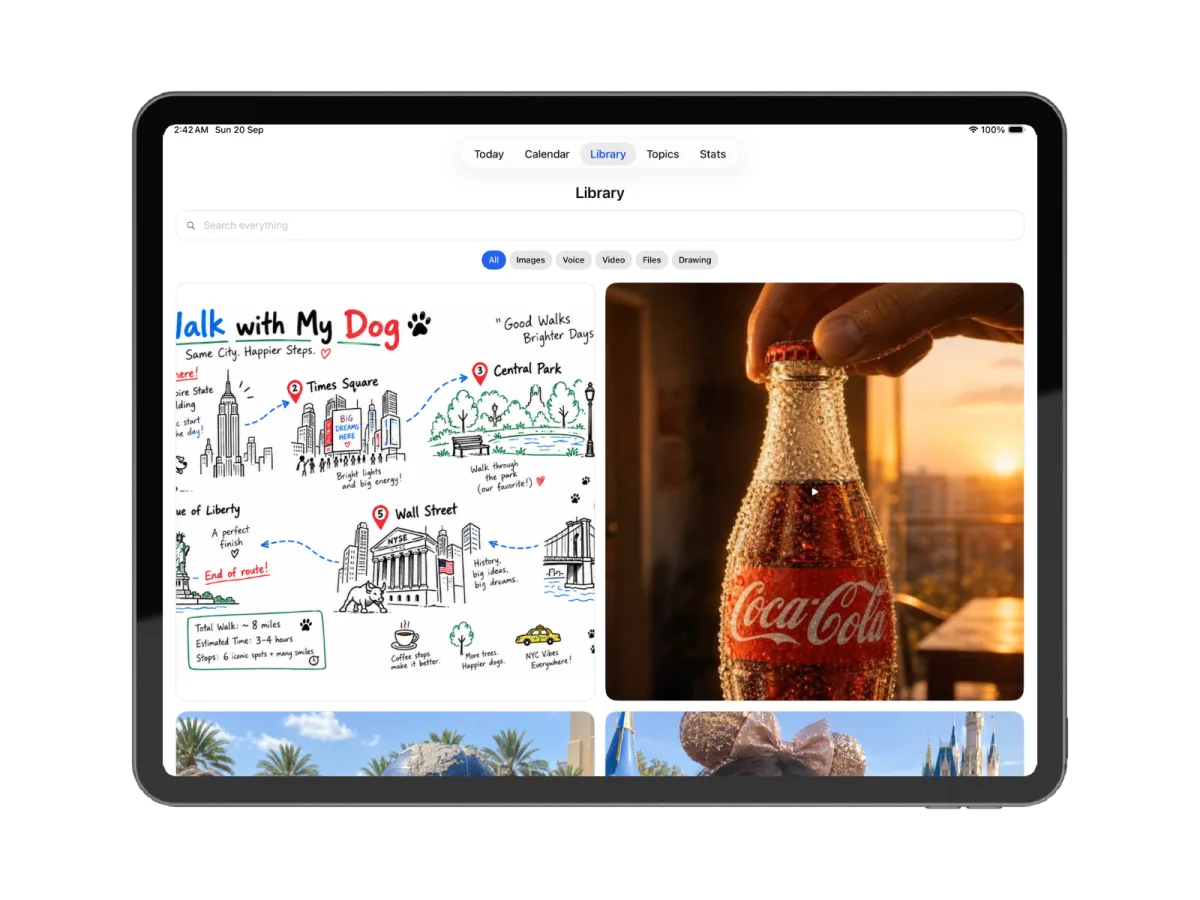
Every photo, clip and file you've added
Drawings, photos, videos, PDFs and voice notes all get collected into one library as you write, sorted by kind. On a 13-inch screen that's a contact sheet of your year rather than a list you scroll.
Images, Voice, Video, Files, Drawing
Auto-collected tabs. Nothing to file or tag yourself.
Search everything
One box across the whole library, including text found inside images.
Drawings kept as their own kind
Pencil work is filed separately from photos, so sketches stay easy to find.
All of it on the iPad
Media sits on the device with the writing. None of it is uploaded to us.
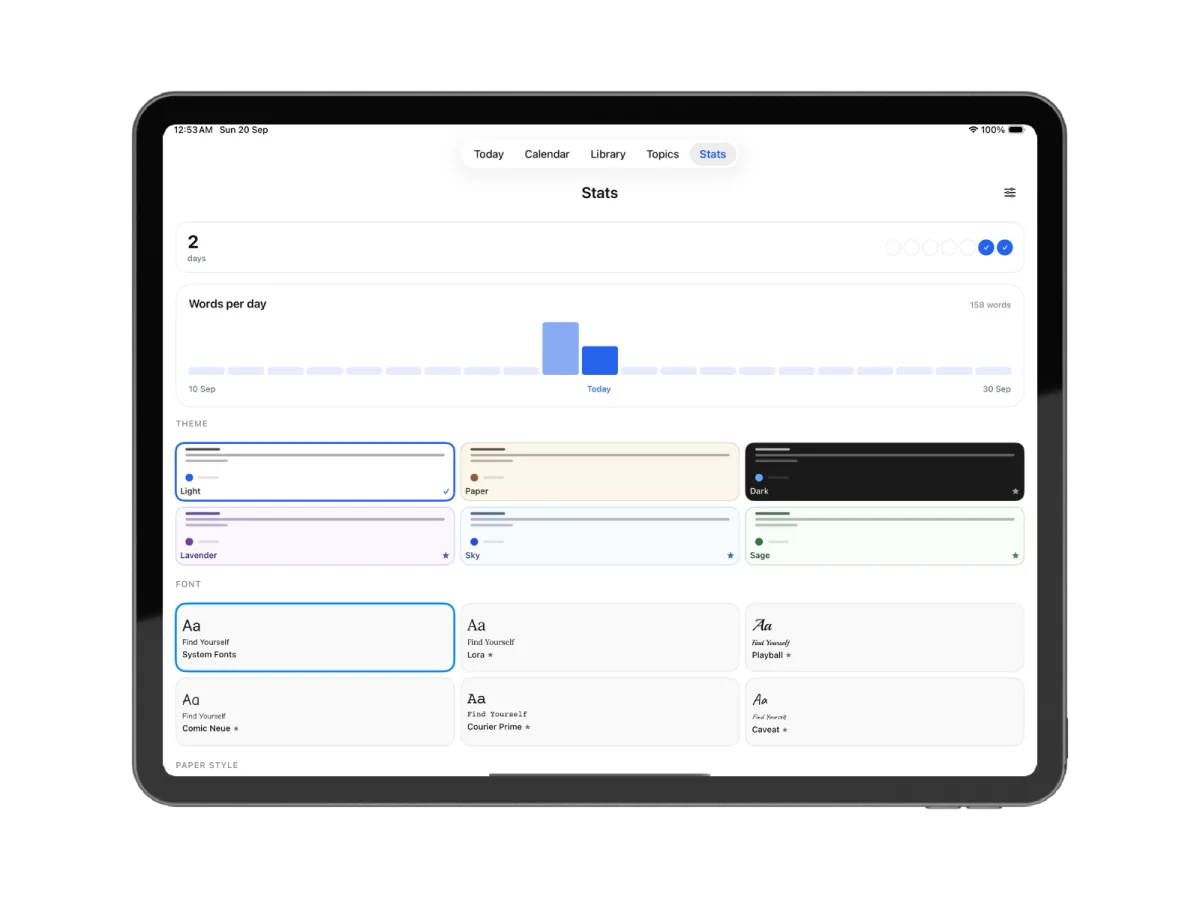
Make it somewhere you want to write
Stats keeps a day streak and a words-per-day chart — and stops there, with no goals, reminders or habit scoring. The rest of the screen is the appearance controls, which on an iPad you can see all at once.
Six themes
Light, Paper, Dark, Lavender, Sky and Sage. Light is free; Premium unlocks the rest.
Six writing fonts
System, Lora, Playball, Comic Neue, Courier Prime and the handwritten Caveat.
Four paper styles
Plain, ruled, dotted or grid — dotted is the usual pick for mixing Pencil with typing.
A streak, not a scoreboard
Days in a row and words per day. There is no habit tracker and nothing to fail.
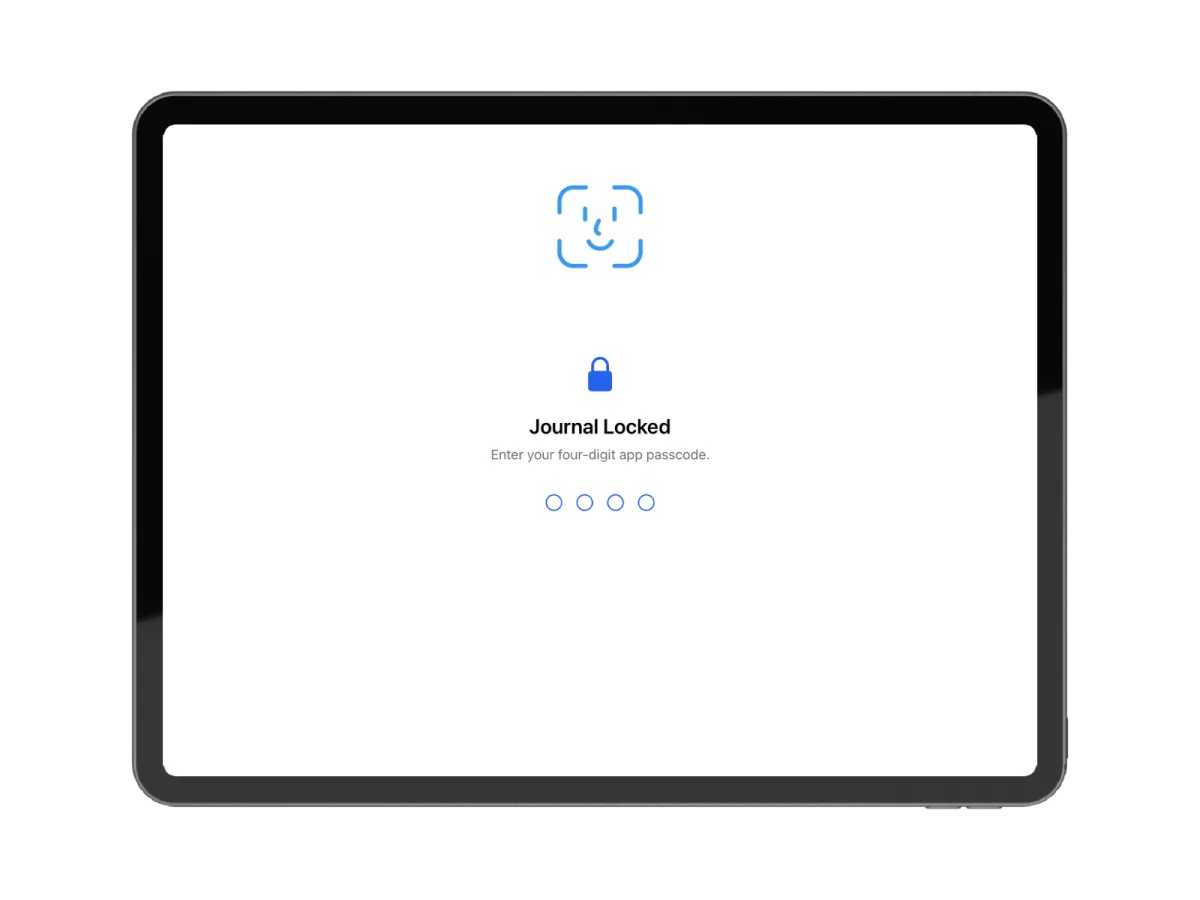
Protect your journal with Face ID or a passcode
An iPad gets handed around — to watch something, to look at photos, to keep a kid busy. Set a four-digit passcode and the journal stays shut through all of it.
Four-digit passcode
Set on the app, so handing over an unlocked iPad doesn't hand over your journal.
Unlock with Face ID
Look at it and you're in; the passcode is the fallback rather than the daily step.
No account to compromise
Nothing is stored on a server of ours, so there's no login anyone could get into.
Compared with the usual iPad journaling apps
Day One and Goodnotes are both excellent. They're aimed at different halves of this.
Frequently asked questions
Yes. Three Pages Daily is on the App Store for iPhone, iPad and Mac, it's free, and it keeps everything on the device with no account needed to start. There's also a web version that runs in Safari on the same iPad — the two don't sync with each other, so it's worth picking one before you build up a year of entries in both.
It depends which accessory you reach for first, and it's worth being blunt about that. If handwriting is the whole point, Goodnotes is better than this and better than most — it has the finest ink engine and it searches handwriting, which we don't. If you want the most polished diary app for iPad and you live entirely in Apple's ecosystem, Day One is excellent. As a journaling app for iPad, Three Pages Daily is the better fit when you want to type the entry but keep the Pencil, photos and voice notes on the same page, when you'd rather not maintain notebooks and folders, and when you want the writing stored on the iPad rather than on someone's server.
Yes, and it's the main reason to journal on an iPad rather than a phone. You can put a drawing canvas anywhere inside a page and write or sketch on it with the Pencil while your finger still scrolls, so there's no mode button to toggle between drawing and navigating. Pen, highlighter, eraser and lasso are all there, over plain, ruled, dotted or grid paper.
That's the intended way to use it. Type the entry with a Magic Keyboard or any Bluetooth keyboard, then drop a canvas into the middle of it and sketch a diagram or handwrite a margin note. Both live in the same page under the same date, rather than in a separate drawing app you'd have to cross-reference later.
No. Handwriting stays a drawing, which means handwritten words are not searchable — and that's the one real limitation to weigh before committing to a Pencil-first journal. If finding things later matters, type the part you'll want to search and keep the Pencil for diagrams, annotations and whatever is genuinely faster drawn than described.
Yes. You can set a four-digit passcode on the app and unlock it with Face ID, so the journal stays shut even on an iPad that's already unlocked — which is the realistic case for a device that gets handed around at home. It works on the free plan.
Use the app if you want the journal stored on the iPad itself, if you write somewhere without wifi, or if handwriting is the main event. Use the browser version if you also write on a Mac, a PC or an Android phone and want the same journal on all of them — the app only reaches your Apple devices, and only with Premium's iCloud sync turned on.
Not for their core jobs. Those are better at handwriting, and they annotate PDFs, which this doesn't do at all. This is the better fit if you want a dated daily journal where typing is the main surface, with handwriting, voice notes and photos available on the same page — and where entries file themselves by date instead of into notebooks you maintain.
The download is free, and so is writing three pages a day. Premium is $5.99/month or $49.99/year and adds unlimited pages, the other five themes and fonts, unlimited Topics, and iCloud sync across your Apple devices. It's bought through the App Store and is a separate purchase from the web subscription — neither unlocks the other.
Keep exploring
The same app on a phone is built for shorter entries — see journaling on iPhone — or read how the browser version works on everything else.
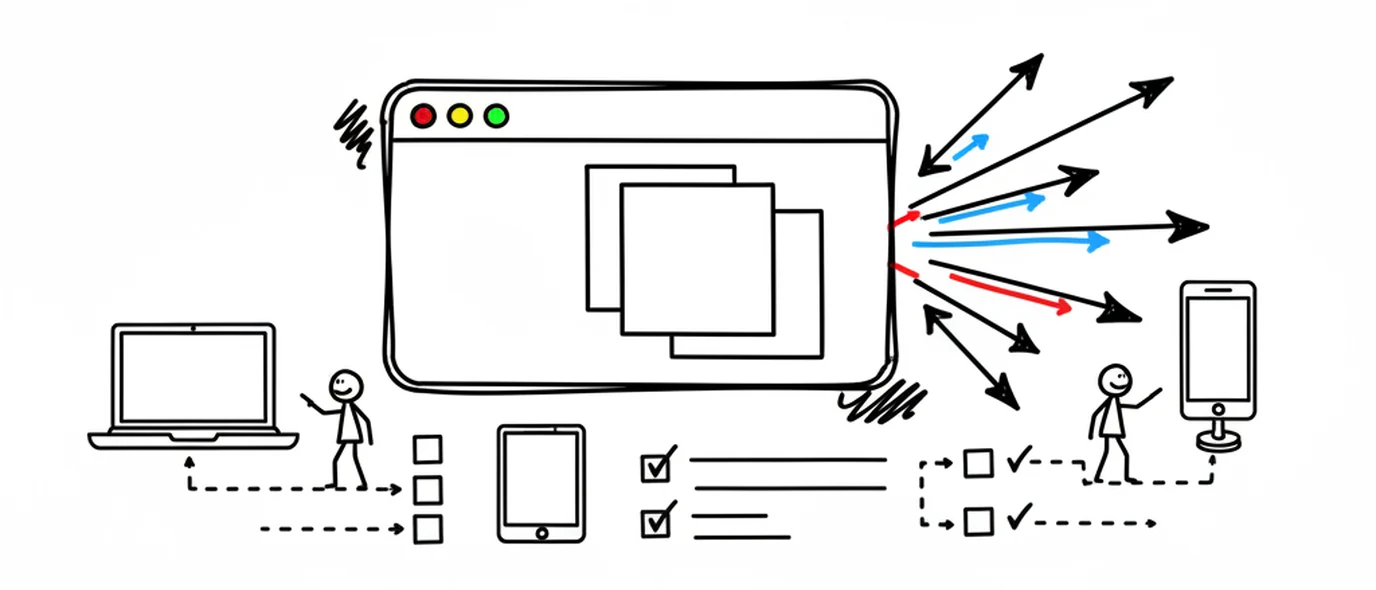
Online journal
Open your journal on any computer you can sign in on, with nothing to install.
Digital journal
What you gain by keeping a journal on a screen, and the one thing paper still does better.
iPhone, iPad & Mac app
The free app for iPhone, iPad and Mac, with your journal kept on the device itself.
Make room for your mind
every day.
Three pages a day. No setup, no folders, no complexity. Just open it and write.