A minimal journal app
for your Mac
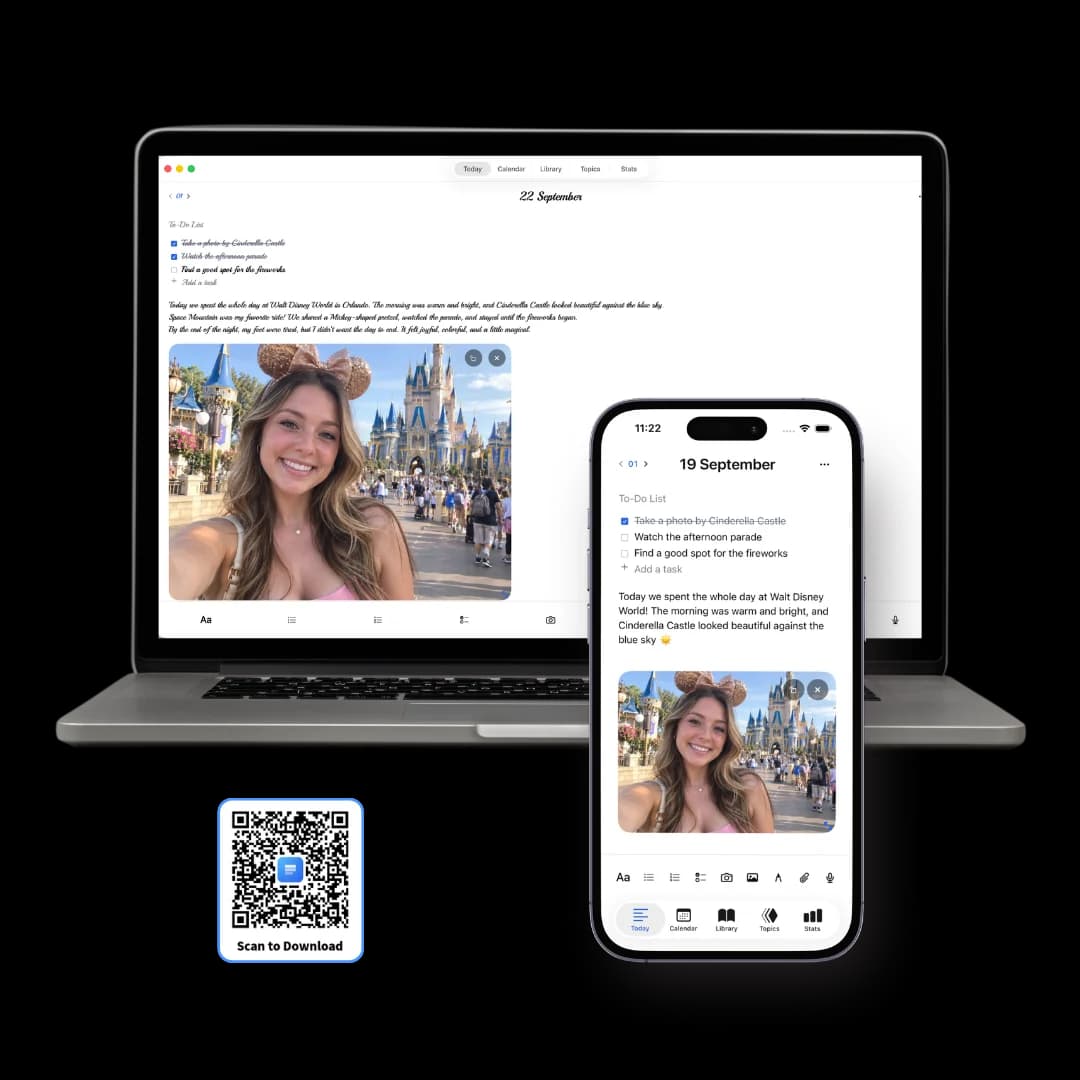
Three Pages Daily is a journal app for Mac that's there the moment you need to write something down.
You’re reading something, or halfway through a task, and a thought arrives. Open it, write the line, go back — it lands on today’s page with the date already on it. Paste a link, drop in a screenshot, or record the thought instead of typing it. Six months later you can search any of it, and a passcode or Touch ID keeps the whole thing shut.
Capture inspiration whenever it comes
An idea can arrive while you work, read or plan your day. Open Three Pages Daily on your Mac and write it down while it is fresh. Add a sketch, a link or a screenshot to express what you mean. Every thought has a place on today's page.
A quick thought or a longer reflection
Capture a few words now, then give the idea more room whenever you want.
A checklist on the page
The day's tasks sit above the writing rather than in a separate app.
Give your ideas a shape
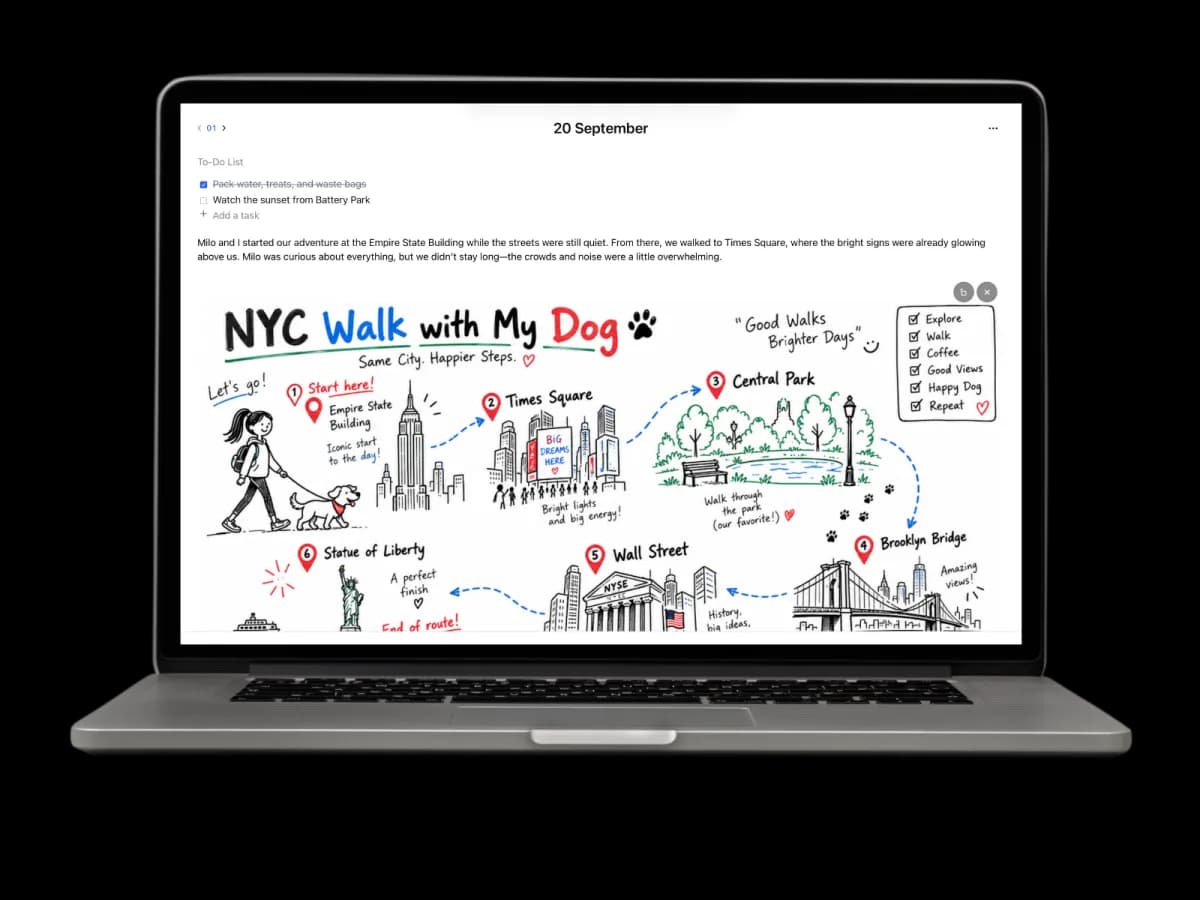
Use a sketch or a diagram when a picture helps you explain what you are thinking.
Nothing to file
The date organises it. You never choose where an entry goes.
Talk it out instead of typing it
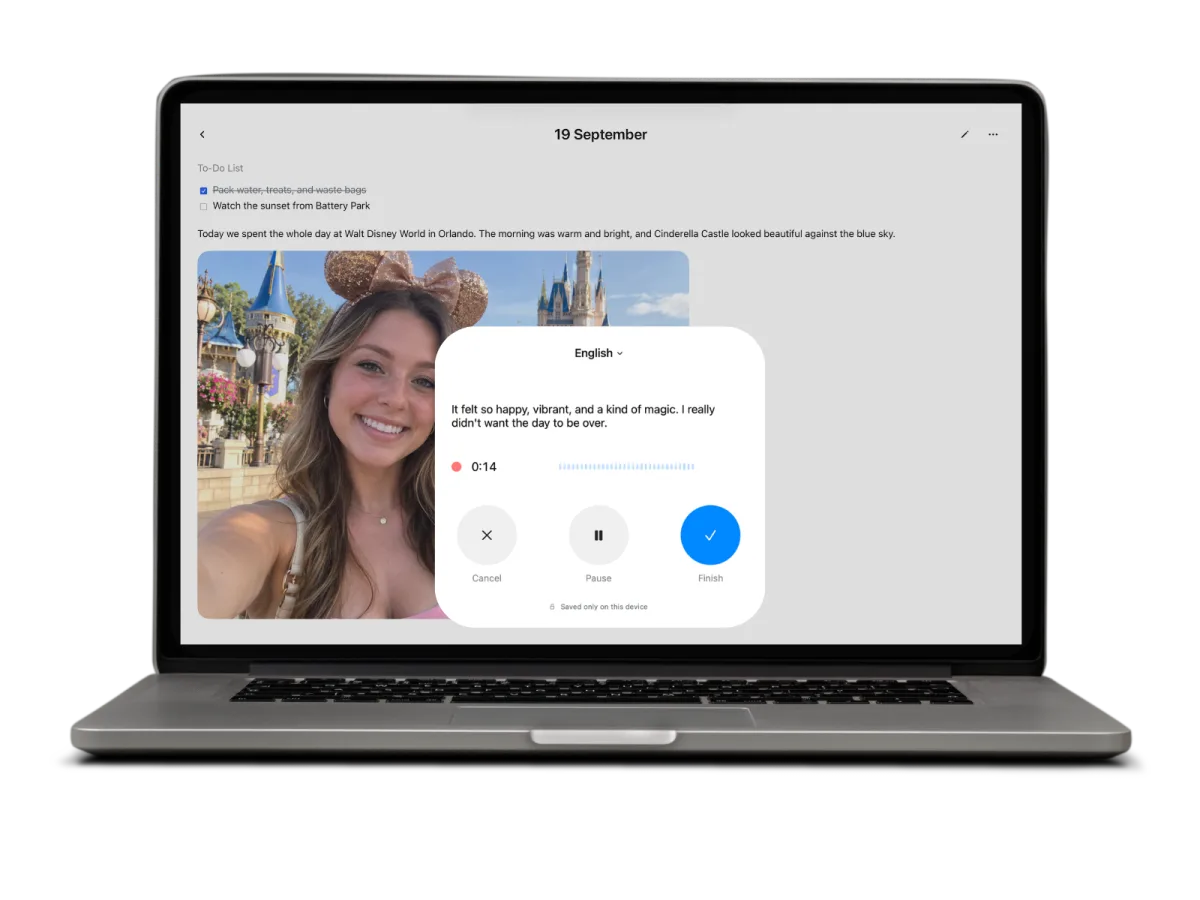
Some thoughts take three paragraphs, and you'd never sit and type them. Hit record and the words appear as you speak — you keep the audio and the text, both on the day's page.
Transcribed as you speak
The words appear while you talk, and stay editable once you stop.
Handled on your Mac
The panel says it plainly while recording: saved only on this device.
Audio stays with the day
The recording sits in the entry, not in a separate voice memo list.
Searchable afterwards
The transcript is text, so a spoken note turns up like anything else you wrote.
Open any day, or search for the one you half-remember
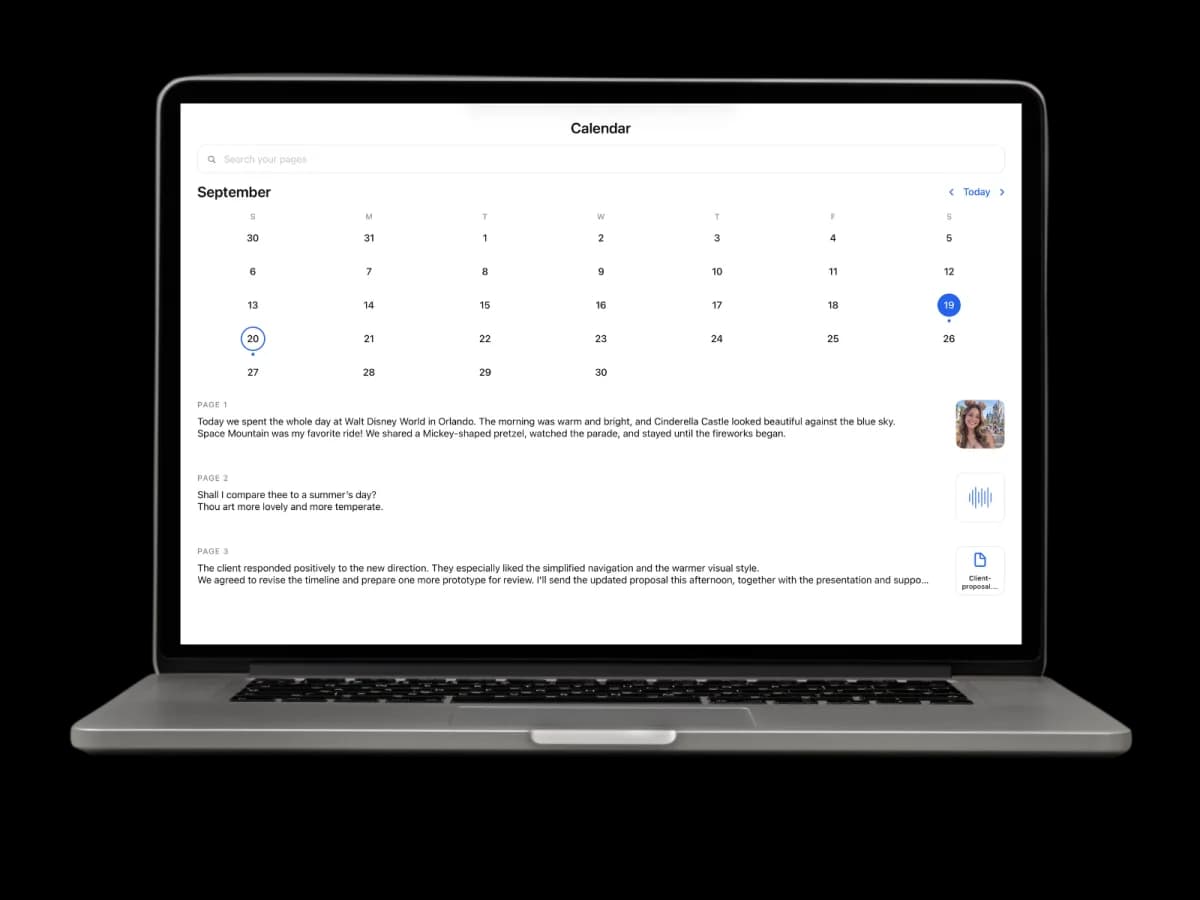
The calendar marks the days you wrote, and one box searches everything underneath — the writing, your voice transcripts, the words inside photos you added, and the files you attached, down to the text inside a .txt.
A month at a glance
Dots under the days you wrote, so a season of your life reads in one look.
Three pages side by side
The day's pages list out under the calendar with the media each one holds.
Text found inside images
A photo of a whiteboard or a receipt turns up in search by what it says.
One thing it can't do
Handwriting stays a drawing, so words drawn by hand aren't searchable.
Every photo, clip and file you ever added
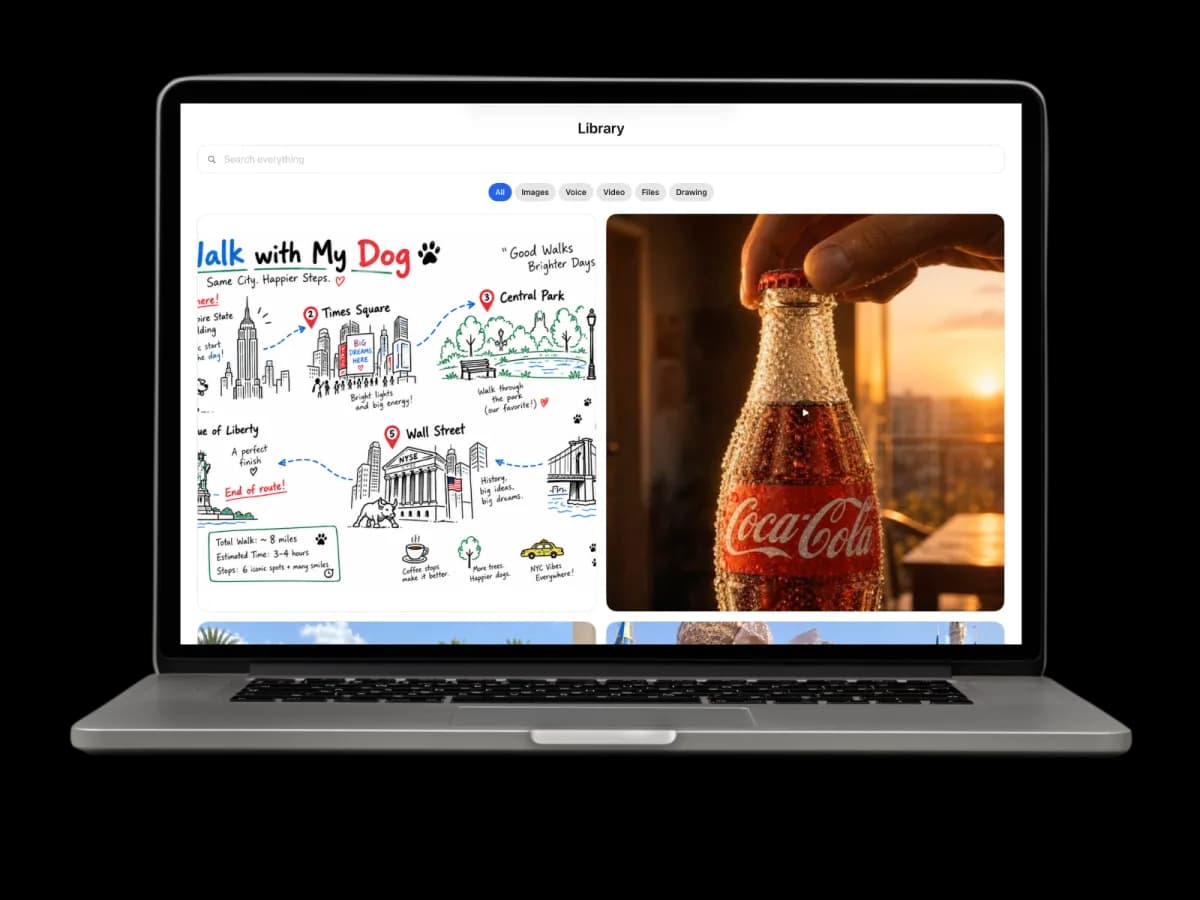
Everything you've ever added — drawings, photos, videos, PDFs, recordings — gets collected in one place as you go, sorted by kind. On a big screen you see a year of it at once instead of scrolling a list.
Images, Voice, Video, Files, Drawing
Auto-collected tabs. Nothing to tag, move or file yourself.
Search everything
One box across the whole library, including the text inside your images.
Files kept in context
A PDF sits in the day it mattered, instead of in a downloads folder.
All of it on the Mac
Media is stored alongside the writing. None of it is uploaded to us.
Make it a place you want to open
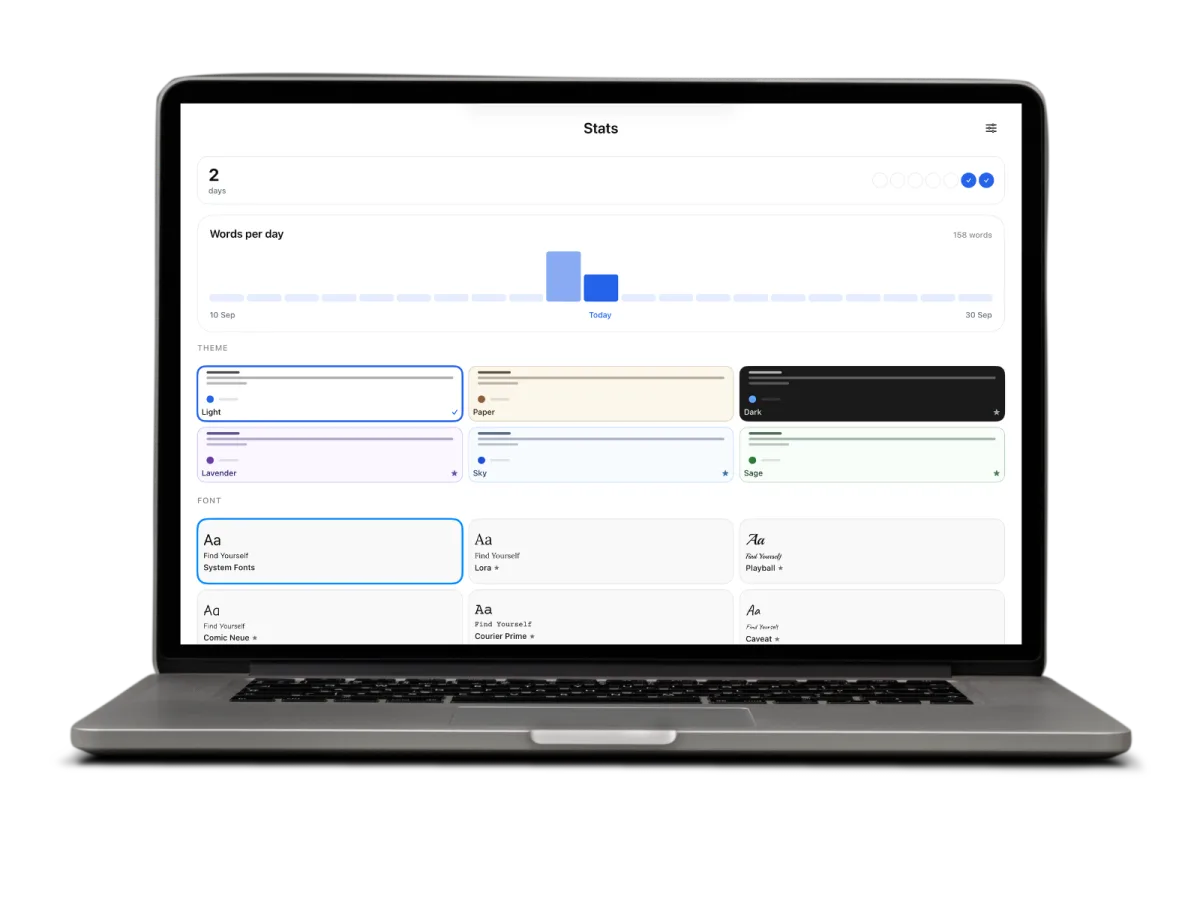
A streak and a words-per-day chart, then nothing else — no goals, no reminders, no scoring. The rest of the screen is the appearance settings, which on a Mac you can take in all at once.
Six themes
Light, Paper, Dark, Lavender, Sky and Sage. Light is free; Premium unlocks the rest.
Six writing fonts
System, Lora, Playball, Comic Neue, Courier Prime and the handwritten Caveat.
Four paper styles
Plain, ruled, dotted or grid beneath whatever you write.
A streak, not a scoreboard
Days in a row and words per day. There is nothing here you can fail.
Protect your journal with Touch ID or a passcode
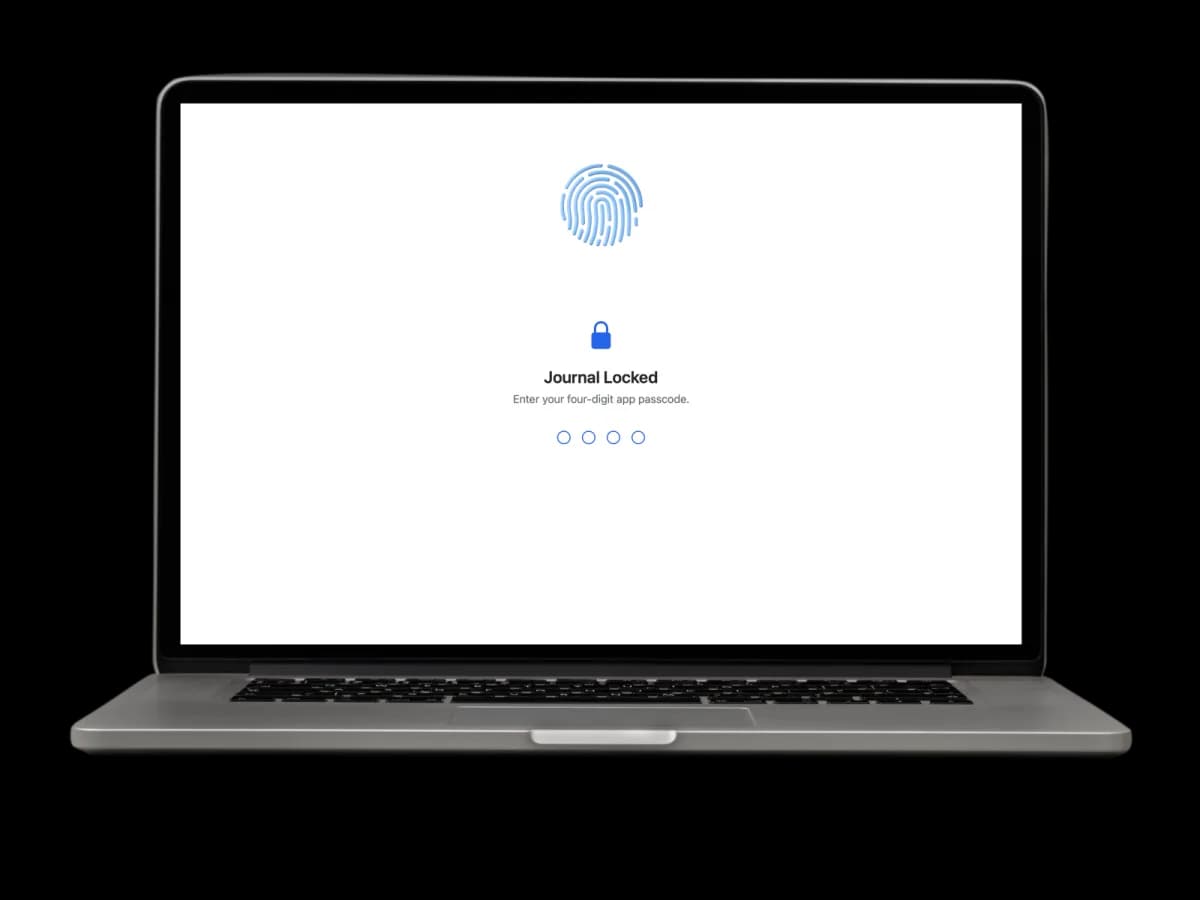
Your Mac sits unlocked all day, and on a call you might be sharing the screen. A passcode on the journal means none of that matters — it stays shut until you open it.
Four-digit passcode
Set on the app, so an unlocked Mac doesn't mean an open journal.
Touch ID to unlock
On Macs with the sensor, the passcode becomes the fallback rather than the routine.
No account to compromise
There's no server copy and no login of ours, so there's nothing to breach remotely.
A journal, or a writing app?
Both are good, and they're for different things. Picking the wrong one is a common reason people stop writing after two weeks.
Frequently asked questions
Yes. The Mac app is available now on the App Store, alongside the iPhone and iPad app. All three share one listing and the same download link. It keeps your journal on your device, works offline and needs no account to start writing. Premium adds optional iCloud sync between your Mac, iPhone and iPad.
Depends what you want it for. Day One is the most polished diary app for Mac and has years of features behind it. Ulysses and iA Writer are better if what you actually want is a long-form writing app with a manuscript in it. As a journaling app for Mac, Three Pages Daily is the better fit when you want a journal you'll open every day without deciding anything first, when a day needs to hold a checklist and a photo and a recording as well as prose, and when you'd rather the writing stayed on your own machine.
Yes. The download costs nothing and the free tier is a working journal rather than a demo: three pages a day with no word limit, drawing, photos and files, voice notes with transcription, Topics, search and the passcode lock. Premium is $5.99/month or $49.99/year and adds unlimited pages a day, the other themes and fonts, unlimited Topics, and iCloud sync with your other Apple devices.
Completely. Your journal is stored on the Mac itself, so writing never waits on a connection and nothing is lost when one drops. That's the main practical difference from the web version, which keeps your journal in an account with us and needs a connection for lasting backup.
Yes, with a four-digit passcode, and Touch ID unlocks it on Macs that have it. That's a lock on the journal rather than on the machine, which matters on a shared desk or a work laptop — your Mac is usually already unlocked when someone else is looking at the screen.
With Premium, yes — iCloud sync keeps the same journal on every Apple device signed into your account, and it runs through your own iCloud rather than through a server of ours. On the free plan the app stays on one device, which is a deliberate choice rather than a limitation to upsell you past.
A journal, and the distinction is worth making before you install it. A writing app like Ulysses or iA Writer is built around a document you work on over weeks — drafts, exports, word targets. This is built around days: every entry files itself under a date, you can put a photo or a recording next to the prose, and the value comes from the archive rather than any single piece. If you want to write a book, use a writing app. If you want a record of your days, this is the shape for it.
Because the journal lives on the Mac rather than on a server, removing the app removes the writing with it — so export to PDF first, which is free on every plan. If iCloud sync is on, your other Apple devices still hold their copy.
Keep exploring
The same app runs on the rest of your devices — see journaling on iPhone and on iPad with Apple Pencil — or use the web version on your Mac today.
Online journal
Open your journal on any computer you can sign in on, with nothing to install.
Digital journal
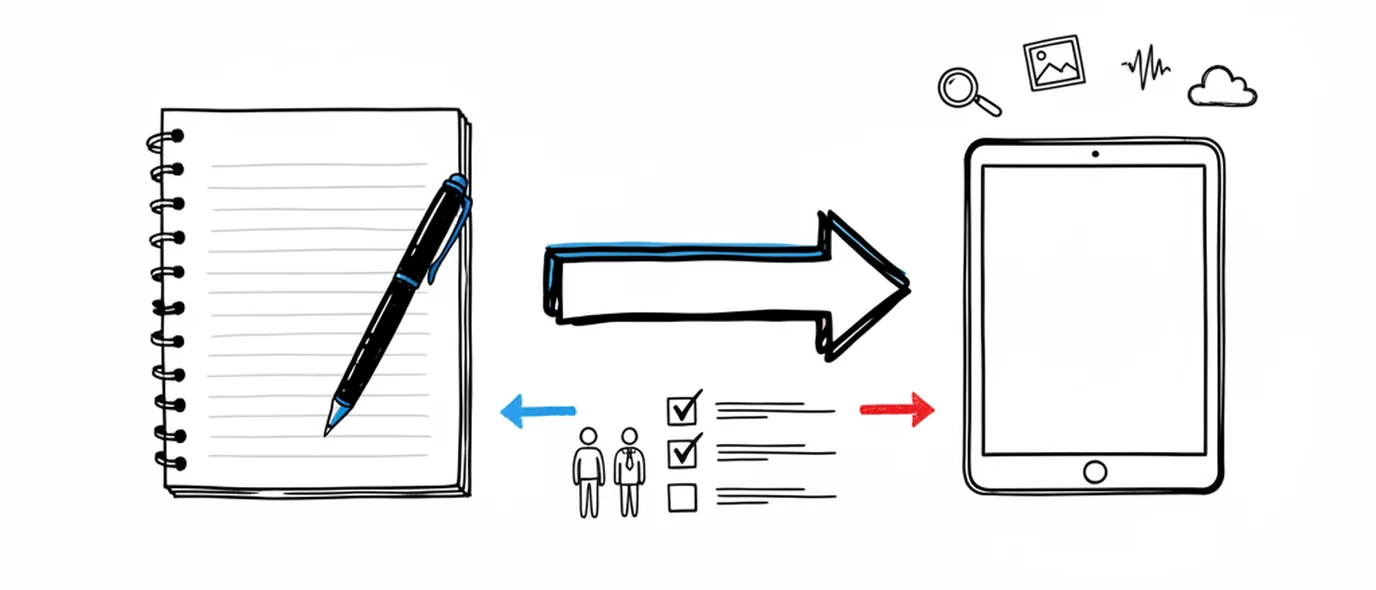
What you gain by keeping a journal on a screen, and the one thing paper still does better.
iPhone, iPad & Mac app
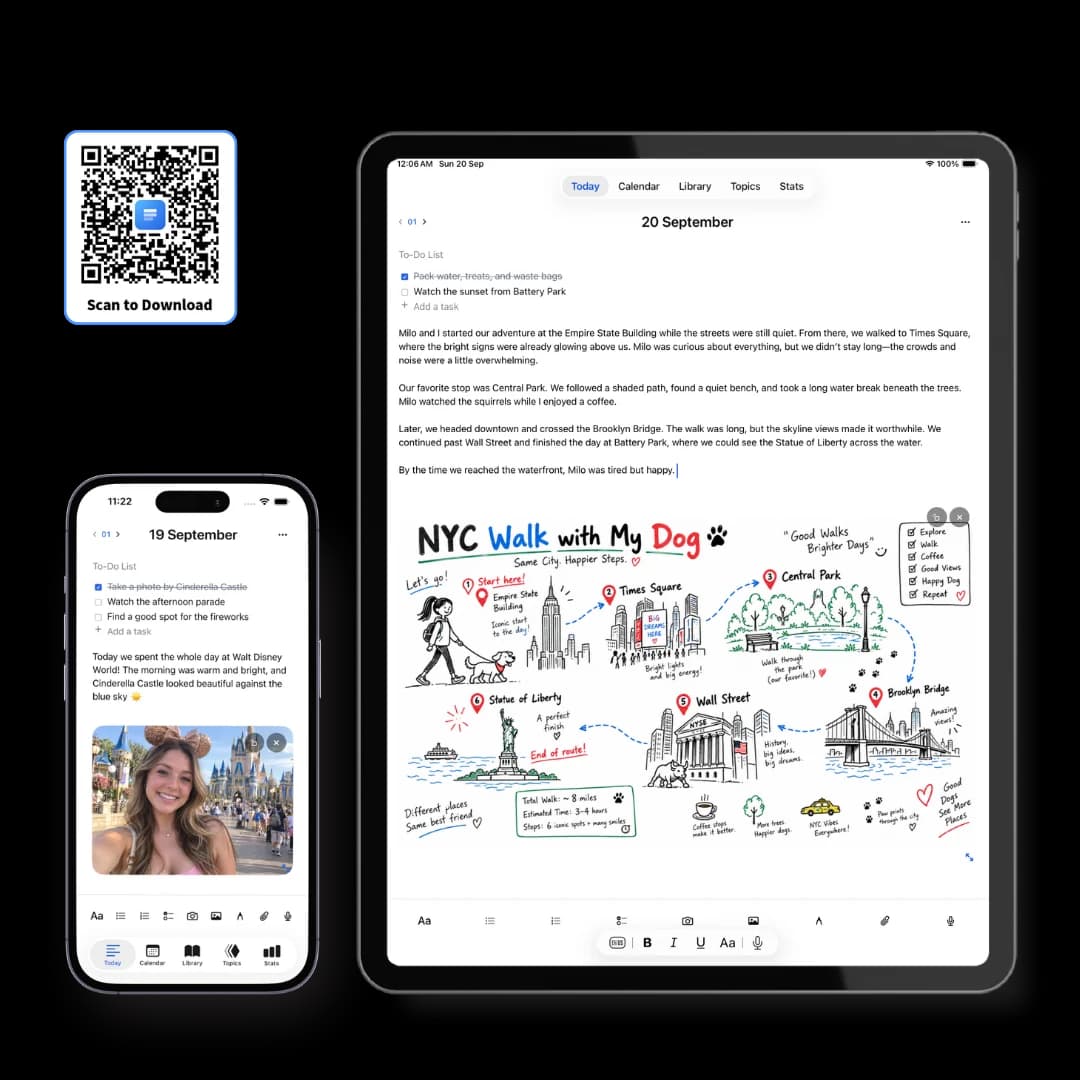
The free app for iPhone, iPad and Mac, with your journal kept on the device itself.
Make room for your mind
every day.
Three pages a day. No setup, no folders, no complexity. Just open it and write.