A journal app for Windows,
right in your browser
Three pages a day in Edge or Chrome. Write as long as the day needs at a full keyboard, and install it into its own window when you want it one click away.
Free plan, Windows 10 and 11, Edge or Chrome.
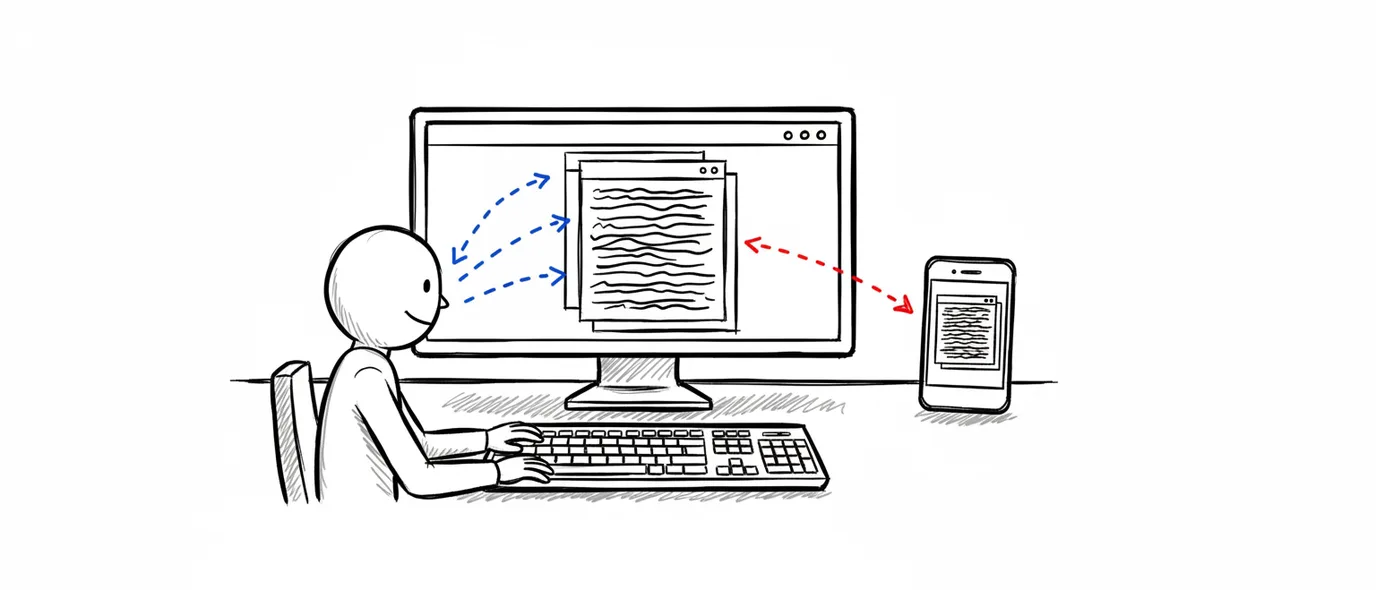
3 Pages Daily is a journal app for Windows that runs in Edge or Chrome and installs from the browser.
Each day opens to three blank pages filed under the date, with room for long typed entries, checklists, photos, drawings and voice notes. Install it from the browser and it gets its own window, a Start menu entry and a taskbar icon. The same journal opens in your phone’s browser, and the free plan has no time limit.
Room for the long entry
A PC is where the three-paragraph version of a day gets written. The page grows with you, and the editor keeps up with a full keyboard instead of slowing it down.
Pages with no word cap
Write a line or three thousand words. The daily limit is pages, and each page holds as much as you put on it.
Familiar shortcuts
Ctrl+B, Ctrl+I, Ctrl+U and Ctrl+Z, plus # and - at the start of a line for headings and lists.
Tables and checklists in the page
Insert a table, a checklist, an image or a drawing canvas from the toolbar, mid-entry.
A character count as you go
Useful when an entry has a target, and easy to ignore when it has none.

Its own window, and the same journal everywhere
Installed from Edge or Chrome, the journal opens in a clean window of its own instead of a tab among twenty. Sign in on your phone and the page from this morning is already there.
Installs from the browser
A Start menu entry, a taskbar icon and its own window, set up in two clicks.
Saved to the PC first
Each keystroke lands in a local draft before the cloud, with a retry queue behind it.
One account, every device
Windows at work, a laptop at home, Android or iPhone in your pocket. One sign-in for all of them.
Voice notes in Chrome
Record on the page and get a live transcript in fifteen languages and regional variants.
Install it on your PC in under a minute
The browser does the installing, so the journal stays up to date on its own.
Step 1
Open it in Edge or Chrome
Go to 3pagesdaily.com and sign in with email, Google or Apple. Today's three pages are ready to write on.
Step 2
Install it from the browser
In Edge: menu, then Apps, then Install this site as an app. In Chrome: the install icon at the right of the address bar.
Step 3
Pin it to the taskbar
It now has its own window and a Start menu entry. Right-click the icon to pin it, and the journal is one click from the desktop.
What a day looks like at a desk
Three pages give the day a shape. Here is one way people use them at a PC.
Morning: plan and clear your head
A to-do list at the top of the page, up to six items, and a few paragraphs underneath to get the noise out before work starts.
Midday: keep what came up
Paste a link, attach the PDF from a meeting, or drop in a screenshot. It stays with the day it mattered.
Evening: write it out properly
The long reflection, at a full keyboard. Unfinished tasks can move to tomorrow, be ticked off, or stay where they are.
A desktop diary app, or a journal in the browser?
Both suit Windows well, and each is stronger at something different.
Frequently asked questions
Yes. 3 Pages Daily runs on Windows 10 and 11 in Edge or Chrome, and the free Standard plan is a full journal: three pages a day with no word limit, images, file attachments, the drawing canvas, voice notes, up to 3 Topics, full search and PDF export, with 250 MB of media storage. It stays free with no time limit.
Open 3pagesdaily.com in Edge or Chrome and sign in with email, Google or Apple. That is the whole setup. To give it its own window and a taskbar icon, install it from the browser: in Edge, open the menu and choose Apps, then Install this site as an app; in Chrome, use the install icon at the right of the address bar. It then opens from the Start menu like any other program.
That is where a PC is at its best. Pages have no word or character cap and grow as you write. The editor understands the shortcuts your hands already know — Ctrl+B, Ctrl+I, Ctrl+U and Ctrl+Z — and typing # or - at the start of a line turns it into a heading or a list. The toolbar adds tables, checklists, images, file attachments and a drawing canvas anywhere in the page.
Each keystroke is saved to a draft on the PC first and then backed up to your account, and failed saves are retried automatically, so a dropped Wi-Fi connection mid-sentence keeps the sentence. A connection is still needed for lasting backup and for opening the journal on another device. If fully offline storage matters most, a desktop diary app that keeps files on the PC is the better fit.
Yes. It is one journal in your account, so the page you wrote at your desk is open in your phone's browser on the train, on Android or iPhone. Our native iPhone, iPad and Mac app is a separate product with its own on-device storage, so pick the web journal if Windows is part of your week.
Every page can hold a drawing canvas with a pen, highlighter, eraser and lasso, which suits a quick diagram or a sketch next to the writing. For a journal written mostly in ink, an ink-first app such as Microsoft Journal is built specifically for that. 3 Pages Daily is built around typing, with drawing alongside it.
Export any page as PDF, or the whole journal as a ZIP of Markdown or PDF files. Markdown opens in any text editor on Windows.
Keep exploring
Writing on your phone too? See the journal app for Android, or start with 120 journal prompts, sorted by mood for the first long entry.
Online journal
Open your journal on any computer you can sign in on, with nothing to install.
Digital journal
What you gain by keeping a journal on a screen, and the one thing paper still does better.
iPhone, iPad & Mac app
The free app for iPhone, iPad and Mac, with your journal kept on the device itself.
Make room for your mind
every day.
Three pages a day. No setup, no folders, no complexity. Just open it and write.